My Heading

More text
]]>fnkjwdahfuieqwnfwef
‘ewe
]]>Final Client meetings, as well as Posts and Site Export Files (.wpress files) are due by Friday April 29.
Please try to find a Final Client Meeting time I can attend. I will post times on Slack.
Each of your Clients has different levels of expertise and need; so your work with clients is likely to reflect those differences. That main outcome of this work should be
- You’ve made some mistakes, discovered some solutions, and figured things out!! Welcome to how learning happens in the transition away from school.
- You’ve increased your skills and confidence with WordPress and building websites.
- You learned some important lessons about working on a team
- You’ve got some experience working with clients and offering your skills and advice as well as learning how to use feedback.
- You’ve developed some insights about what makes a good website that you can use for both clients and your own website.
- You’ve been able to work independently of client pressure if you have been working on a template–and trying to anticipate what a client might want–using placeholders.
Your client site should have many features similar to your portfolio site, as well as some differences. Your site should have most of the following:
- Home page–telling the best bried=f story about your client that you can manage with images and (little) text.
- About page–more detailed client description geared to good stories that would interest viewers
- Menu Navigation to key client info–for many this is an emphasis on offering or selling services products, so make action buttons that allow this on every page/post/menu…
- Client products and/or services. You should have enough of these done, so your client take over adding their own within the clear and clear structure you have provided. You may want to add a few samples templates they could use in future?
- Contact Page with social media icons if they use social media.
- Blog with a few posts about “what’s new” as well as a schedule for adding new content if this is appropriate for your client site. For example, sailing & guiding clients may want to add “monthly stories” from customers. If you set up 2-3 of these, they can use them as well as your “blog” section to build on this in the future. If not, they can eliminate the “blog” part of the menu.
- Users include me with Role: Administrator with my work email. This allows me to help client troubleshoot after the class is done.
Optional:
- Shop/Market–a few clients can benefit from an initial set up of WooCommerce plug-in. You can set up the main pages, as well as a few sample pages, and then let them fill in email, and other client info afterwards.
- Backup strategy–You should all add the All-In-One WP Migration Plugin, and activate it.
- Brief handoff tutorial for client during last meeting about how to work with Dashboard and how to add photos and text content in either pages or posts, and how to use categories, and add/change menu items.
Site export file:
- Follow export instructions from How to Migrate and upload your .wpress export file to your Slack team channel
- Also be sure your site (if online) has me as a User with Administration role. This is critical for helping clients after the class is over. Sites will be moved by the end of May, but your Dreamhost accounts need stay open through the ned of the month.
Post:
ALL students must submit a post in order to get graded & get credit for your client site as individuals. Include:
- Category; Client Site
- Client name
- Team members
- Site URL
- Your specific contributions
- What you learned from working on a team and with clients ; 1-2 paragraphs
ie What worked well on your team ( or as a solo template creator) What could be improved and how? In this process learning counts in your evaluation even when the outcome is less that you had hoped. And we often learn best from out mistakes.
]]>
Mon April 25 (-5 points. -1 point daily after that)
Post with the following:
- Title: Portfolio-yourname
- Category : Portfolio
- Featured image–a screenshot of a nice part of your portfolio
- A clickable URL for your portfolio –this must be an online (not local) Website in order for me to see and grade it.
- Any text or explanation you need
Your Portfolio should contain the following:
- Menus–with Portfolio, About Me, Contact and any other items you choose (not too cluttered, you may use sub menus or nested menus for less important items)
- Header/Footer–With a logo, menu, social icons etc.
- Homepage— with clear info about you–photos of you or your work are good here
- About Me Page– a more detailed intro to you and your skills, interests
- CV Download–upload the pdf to your Media folder then elect it in the Media Library–the URL for it will be in the lower right column; then use that link for the Download CV button.
- Contact Pop up/Page--Pop up or page for people to contact you
- Portfolio Page–this page is designed to use posts with categories to filter your projects dynamically
- Coherent, appealing Design–Design and color scheme should complement your work
- Robust Content–you dont need to refer to any classes (not professional) but DO refer to the kind of work “logo” “graphic” “code” , and use these categories.
P5js “block” can be used to ad a “block” to Post (use the Block Editor for this post):
https://www.wpfastworld.com/13/p5-js-block-wordpress-plugin-free-download/
You can also embed an animated gif, or screen shots of a P5js project.
]]>
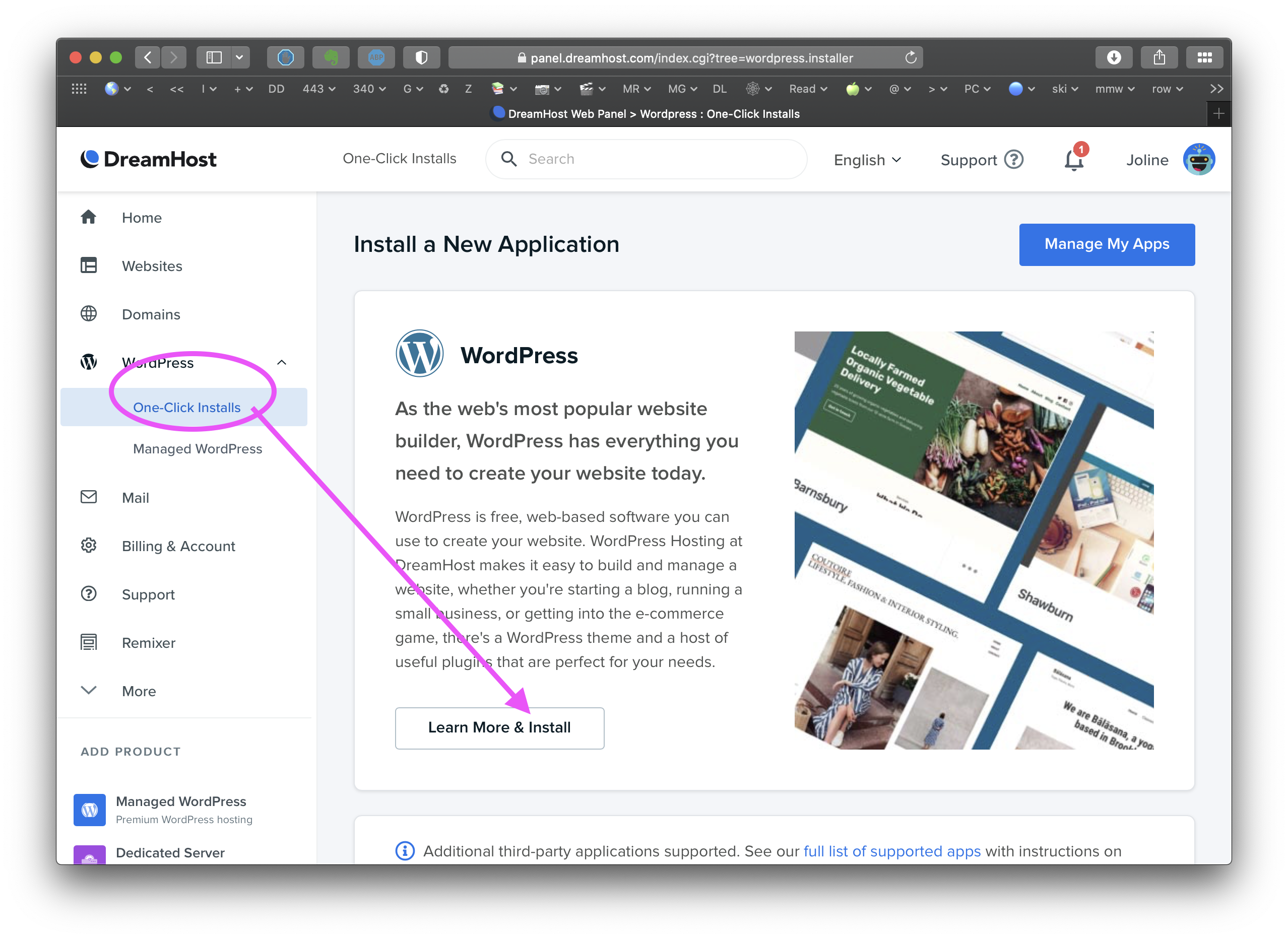
- Login to your Dreamhost account and navigate to WordPress –>One Click Installs.
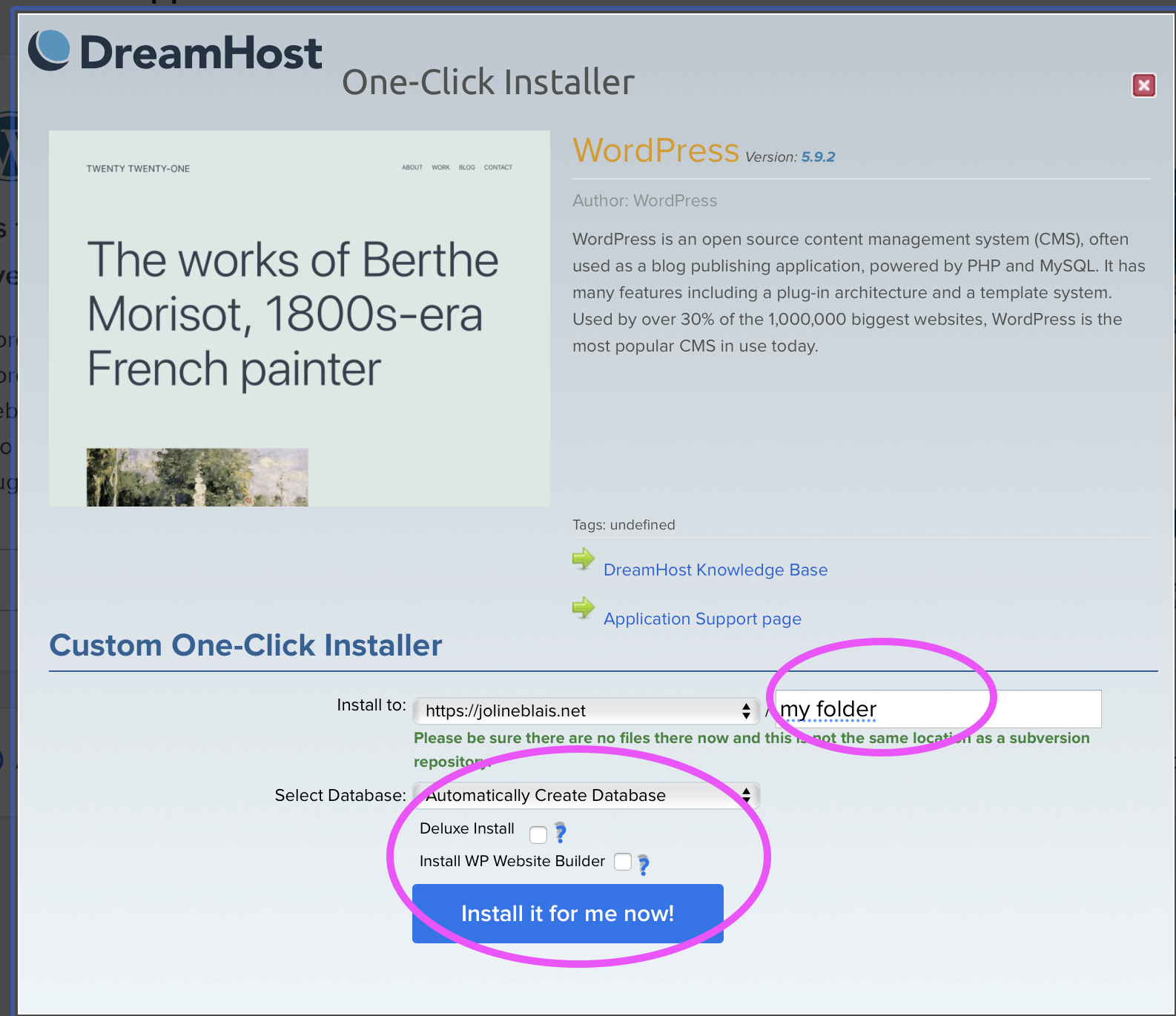
- Install WordPress in a NEW FOLDER on your Dreamhost account, following these instructions.
- An email (based on your Dreamhost account email) will be sent to you from WordPress to set your password. Use an easy temporary password, as it will be replaced when you import your local site.
- On each of your two sites: login to WordPress Dashboard. In WordPress Dashboard go to Plugins–>Add New. Search for All In One WP Migration plugin
- Install the All In One WP Migration plugin plugin & Activate it on your source (local) site and on your Destination {online) WordPress site. A new All In One WP Migration plugin tab will appear in the black menu area of the Dashboard. Use this tab to do all import/exports.
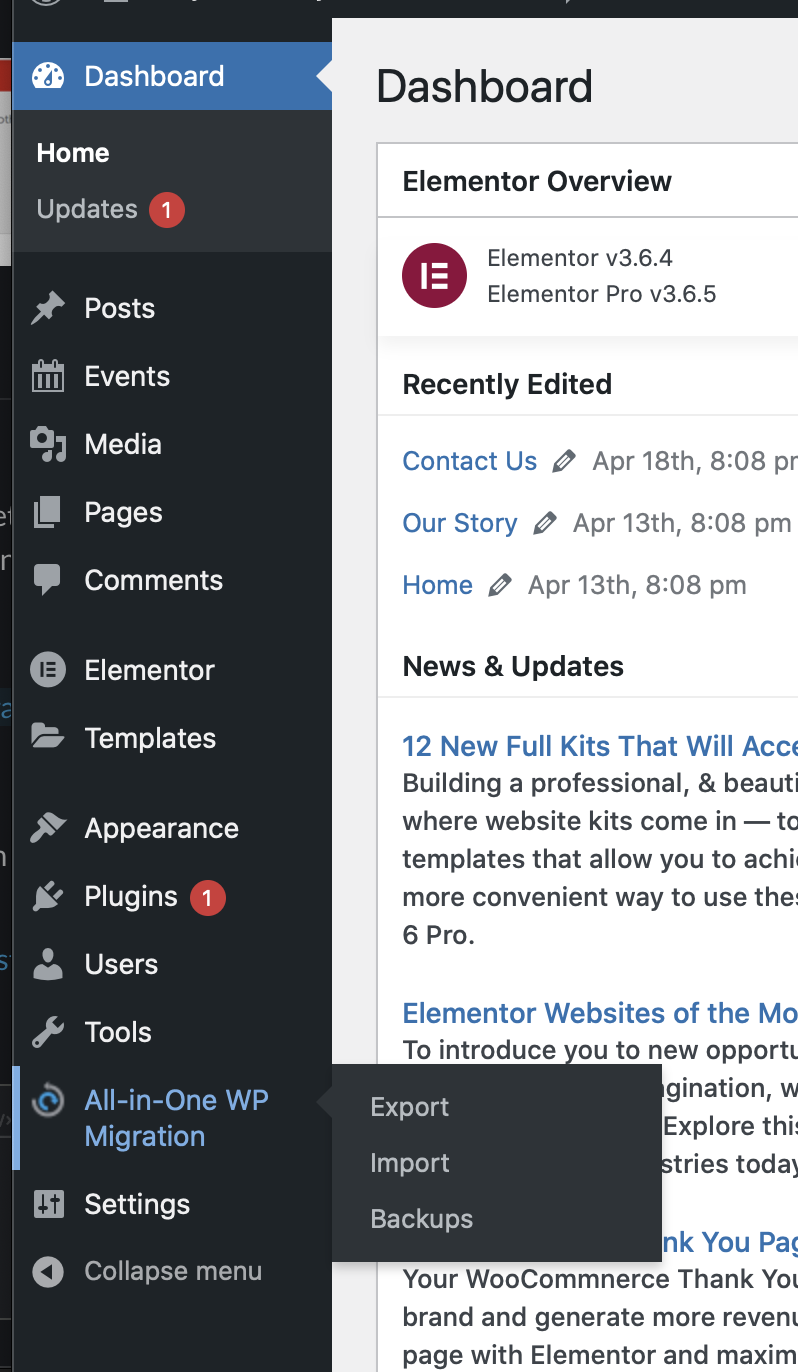
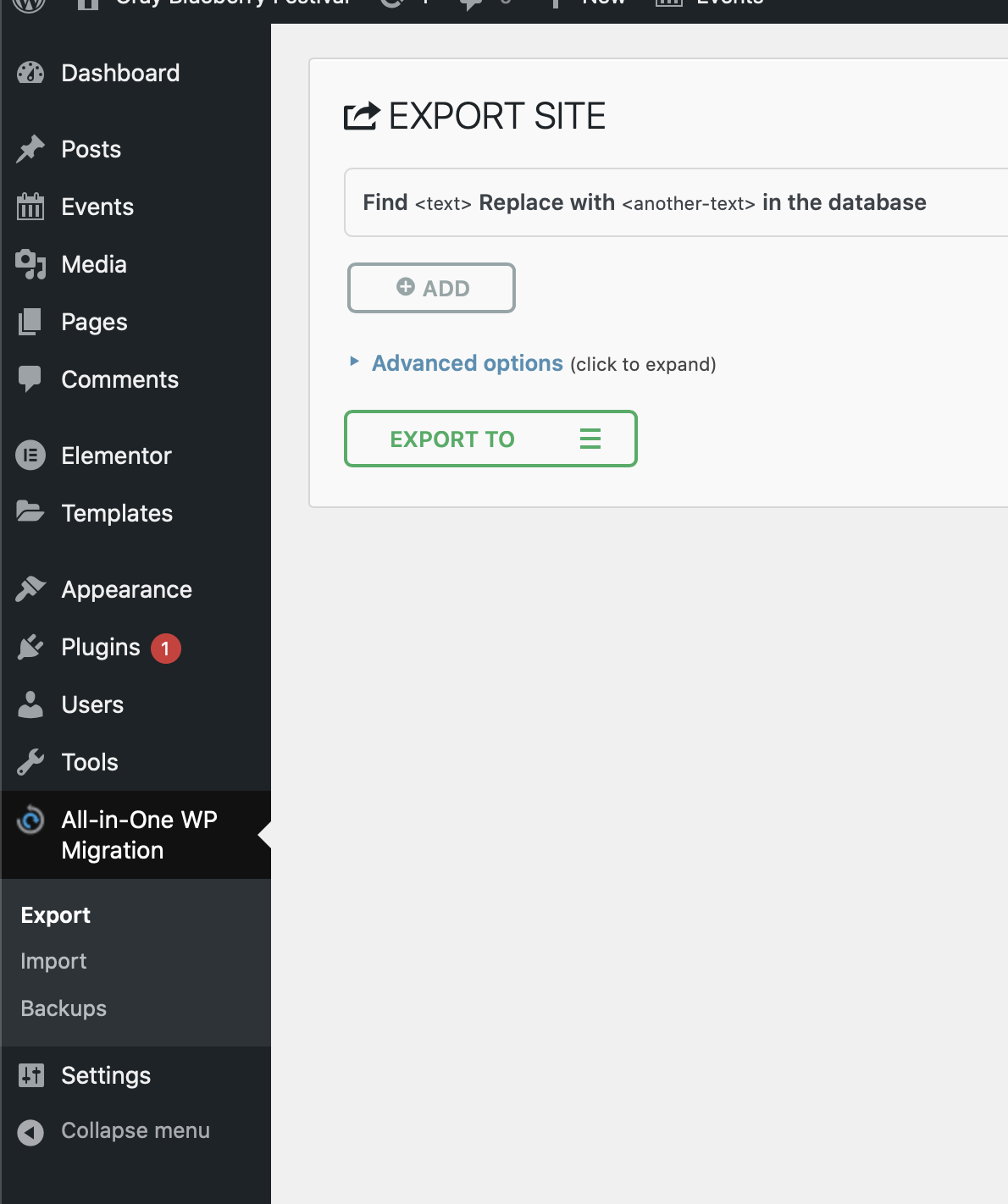
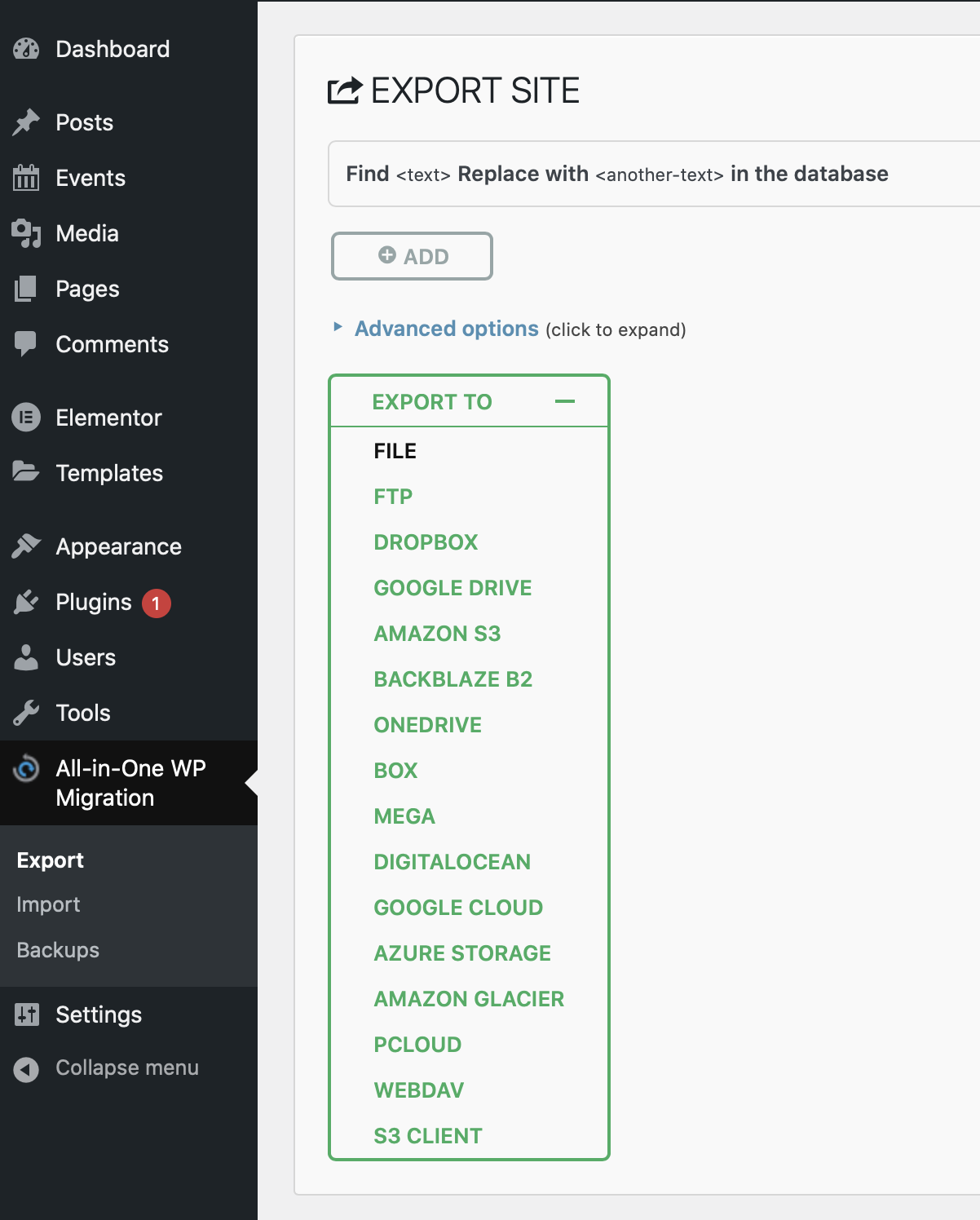
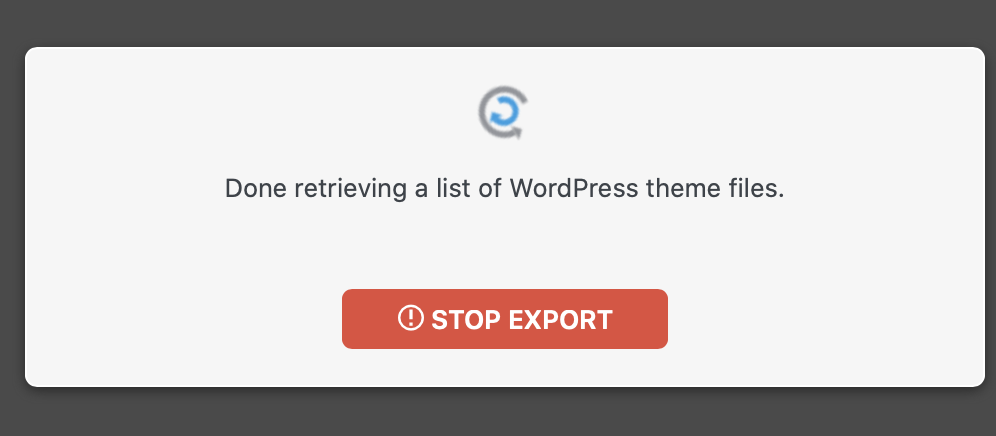
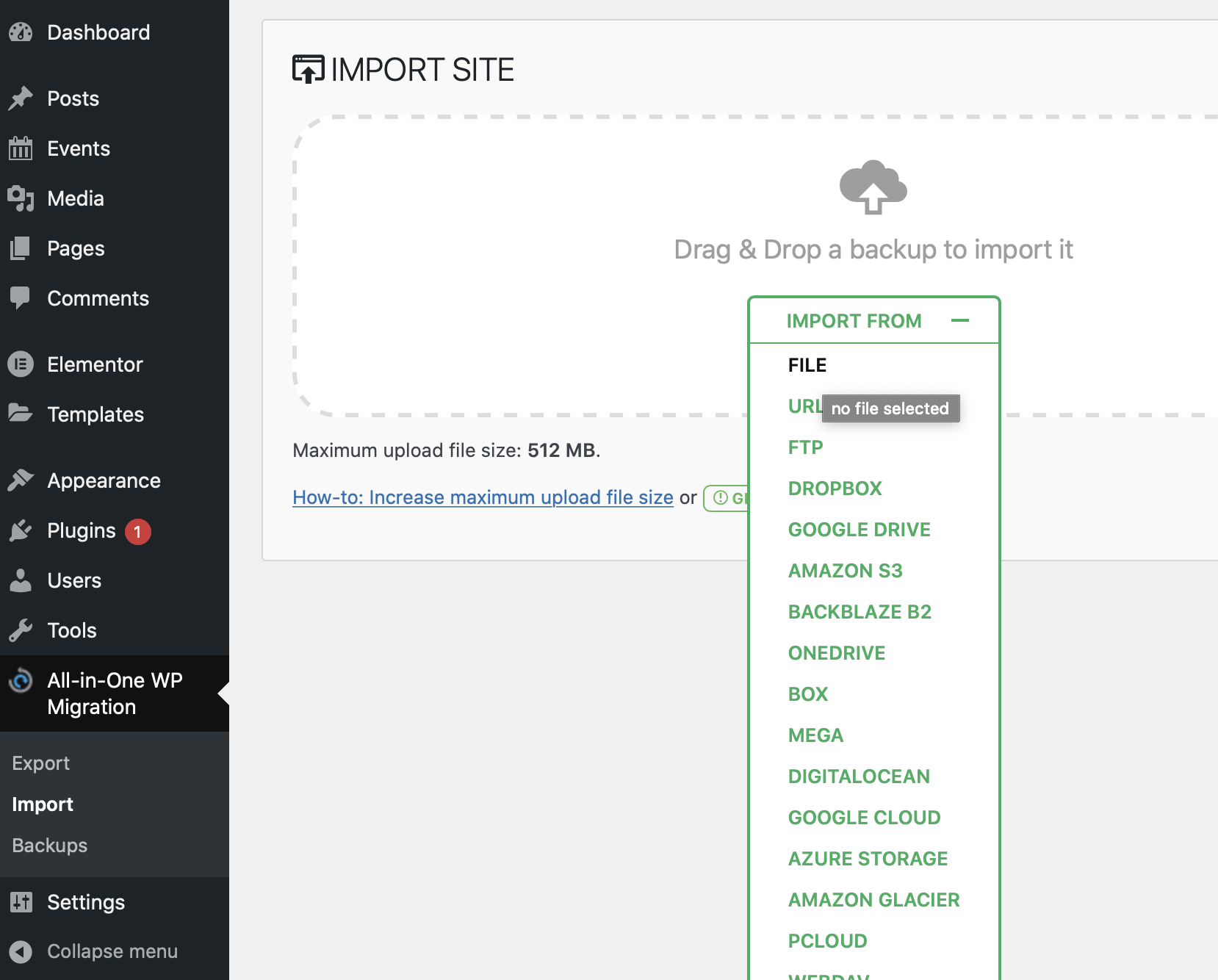
- Now export your Source (local) website via the All-in One Migration plugin with the Export To button (Ignore the ADD button . This will generate a file with extension .wpress
- Then login to your WordPress Destination (online) site. Go to All-in One Migration plugin and import. You will be asked to replace/delete all current info (in order to replace it with all the content from your Source WordPress site.
- Make sure your email in your Source (local) WordPress site is your @maine.edu email–as your user/email /password will ALSO be imported onto the new site.
- Once import is complete, you will only be able to login to the update site with the original user/email/password from your Destination (local) site. As that info replace the temp password you gave tot he Destination site earlier.
- Login to the updated Destination (online ) WordPress site, using the user or email//password from the Source (local ) site, then in Dashboard go to User–> Add New–> add me (see Slack #Wordpress for my credentials to add) and also add your teammates–all as Administrator.
WordPress Install
Portfolio
- Get Dreamhost hosting, using your @maine.edu email; if you used another email, go to your profile/account in upper right (see my tiny photo in first image upper right near Joline) and edit your email so it’s the @maine.edu one (you can change it in a few months if needed; but ANY WordPress install you create will use this Dreamhost email).
- (If you mistakenly installed any WordPress sites, you may need to ask me to delete them before installing any other ones–I can do this in class)
- Install WordPress with “WordPress–> One Click Install”. Add a folder when Installing, and check OFF the 2 tick boxes. ANY Install of WordPress should be in a folder–that’s what the blank box is for–ie the folder name, which will become the last part of your URL after your domain name. Keep the Automatically Create Database.
- Once WordPress is installed, you should find the email (it will be @maine.edu IF your Dreamhost account is set to that) and set it to the SAME password as on your local site–this will avoid any password confusion, as they should be NO change. Wordpress ALWAYS links your website to your email address which cannot change, and Dreamhost uses its email on file to create your WordPress email for each One-Click Install.
- Then add the All-in-one Migration plug-in on both your local site & your new Dreanhosted WordPress site.
- You will need to login to your Dreamhosted WordPress site to do so. Your URL wil now likely be http://mygreatdoman.com/portfolio; Use http://mygreatdoman.com/portfolio/wp-admin to login to your new Dreamhosted WordPress site.
- On your local site, use the plugin to export your site as a “file” on your local computer.
- In your Dreamhost WordPress site, use the All-in-one Migration plug-in (see tab in Dashboard once you activate the plugin) and IMPORT the file that you created from your local website.
- Both sites will now have the SAME email/password, since you just imported that (complete with login info).
Client
Client sites work the same way in steps 1 & 2, but you may not be importing any clones sites, AND you must use a new folder when you do the 0ne-click-install; ie not “portfolio” but maybe “wbbfestival” or whatever identifies your site–no caps, no spaces. You can even use the same email/password for the client site; as your teammates will also create their own when you add them as “Users” with Admin role to the client site
]]>Codepen
Update any missing or incomplete Codepen work before adding Task 10, add “revised” to your past posts so I can re-grade. Please do all revisions in next 2 weeks, unless you get permission from me because of unusual circumstances. Once done, you can move onto Task 10–the last Codepen task.
- W3schools: iframe, FilePaths, Head
- Quiz 10
- Practice CodePen HTML:
- iframe
- file paths
- Head elements
- Portfolio: Media, Social Media, Action Buttons
Portfolio
- Get Dreamhost hosting, install WordPress with WordPress–> On Click Install. Add a folder when Installing, and check OFF the 2 tick boxes.
- Once WordPress is installed, add the All-in-one Migration plug-in.
- On your local site, also add this plugin, and export your site as a file on your local computer.
- In your new online WordPress site Use the plugins (see tab in Dashboard once you activate the plugin) and IMPORT the file on your desktop.
- Post A screenshot of your online front page AND add the online URL to your portfolio.
Client
- Create you Team Slack Channel with Client #Website-name as channel name
- Post any client questions/issues that you are addressing, in this post & on Slack
- Create a “Main Menu” that will have key client pages/sections. Do this by making key pages (they can be blank), and a few sample posts (title, featured image, excerpt, category–you’ll have to create a few), This will require that you have a basic model of the website architecture, though you may not yet have styling, content, colors etc. Post a screenshot of Menu.
- Create a Home page with at least one image, and some legit text. Post a screenshot. If the client alreaydhas a homepage and you are working on a different page, you can substitute that.
- Create a list of Tasks for your Client site–with names next to each task and due dates. You can begin with a list for this week, but if you have a longer term list, that could also be helpful–even if you update it. You can distinguish Tasks in Next Week, vs Overall Tasks.
Task 10 Posts
- Subject: Task 10-yourname
- Category: Task 10 (Do not use “Task” which is reserved for my assignment instructions)
- Codepen large image showing this week’s relevant task & URL (use “HTML comments” to distinguish each codepen addition) OR say you are revising previous posts & add this later.
- Client task list with names.
- Screenshot of client page & menu
- Client URL if they have an online website already.
- Portfolio URL online, with screenshot of your front page online.
CodePen
- Quiz 9
- Practice CodePen HTML:
- table–small table with a header row, and at least 2 rows & 2 columns
- list–one with numbers and one with disc or square bullets (not circles)
- block–use a div to create a horizontal menu of at least 3 items
Portfolio
- Keep updating content & design.
- Add online URL for your site.
Client
- Client Skills list & Sign up
- Liaison: Contact client–one person on your team should call, then email
- Liaison: Set up first meeting for team (and weekly meeting schedule, and first meeting with client.
- Designer: Research and pick some Kits & Themes that could work for client (eg small farm with store, or Festival etc)
- Coder: Research and find likely plug-ins you might use according to a “functions list”–eg Events–>Event Manager, Online Shop–>WooCommerce, etc.
Task 9 Posts
- Subject: Task 9-yourname
- Codepen image & URL (use “HTML/CSS comments” to distinguish each Codepen addition)
- Portfolio URL online!! (we will get hosting in class)
- Client– (share your info with your team so you ALL post ALL of this info)
- List Team names& roles (1-Liaison/Manager/Writer, 2-Designer/Media, 3-Coder)
- Liaison: post client scheduled meeting date/time: TH or Fri this week if possible.
- Designer: add screenshot and URL for top 3 themes or Kits (use your local site to find these, as you have Elementor Pro on there)
- Coder–list possible functions/plug-ins/widgets you might use
- Quiz 8
- Practice CodePen HTML:
- use CSS to redefine and use a standard tag, like P, div, blockquote etc
- use CSS to create a class and use it twice for inline HTML
- use CSS to create two IDs and use them inline HTML
- Portfolio due before Monday of break for full credit, by friday of break for -5 points.
Please send screen shots of each of your portfolio pages, since live links are glitching
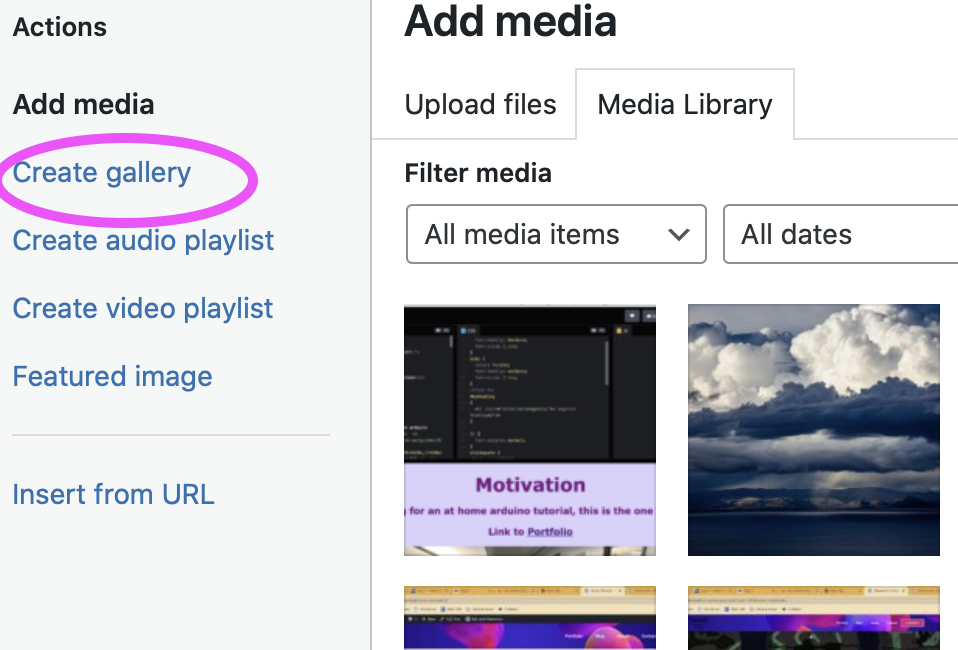
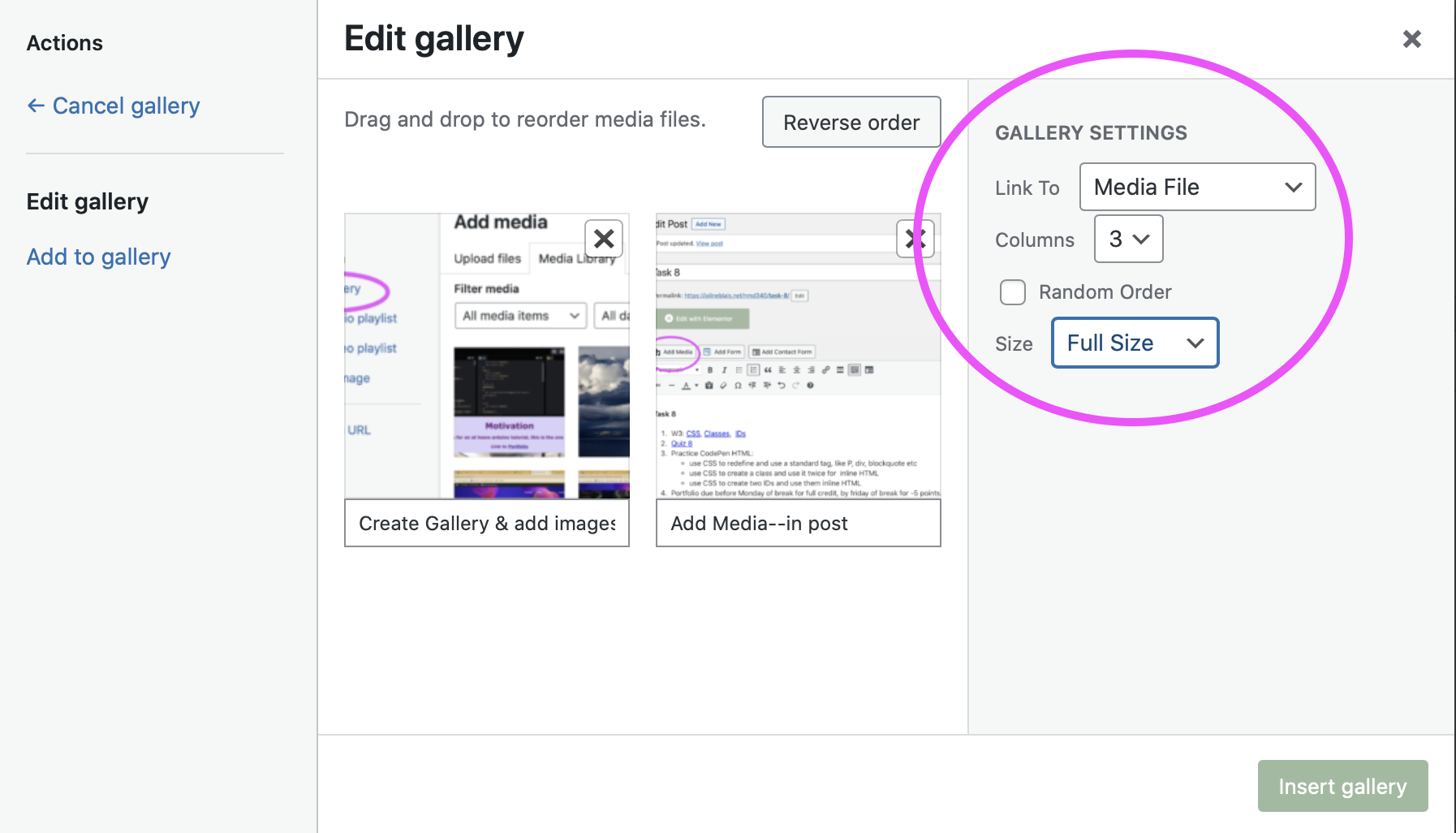
You can create a gallery in your post that has all of your images. Use the “add media” button, then the “create Gallery” link, then just upload images as usual, rearrange by dragging, and add captions for each item below.- Home page
- About Me
- Portfolio with 4 posts
- 4 Post pages with post content template
- Contact form
- Downloadable CV
See the full Elementor series for any individual video you missed.

Client
Start to think about ideas for your client’s website
Task 8 Posts
- Subject: Task 8-yourname
- Category: Task 8 (Do not use “Task” which is reserved for my assignment instructions)
- Codepen image & URL (use “HTML comments” to distinguish each codepen addition)
- Portfolio URL
-
W3: Quotations/ColorsColor Picker : https://www.w3schools.com/colors/colors_picker.asp
- Quiz 7
- Practice CodePen HTML:
- use block quote and q
- use hexadecimal background OR text colors for 2 H (header) elements
- Catch up with any Portfolio tasks:
- Elementor video 8: Project Template
- Elementor video 9: Project Post
- Elementor video 10: Portfolio Page
See the full Elementor series for ny individual video you missed.
Client
- Review the Client First Meeting page, so you get a sense of how to address clients
- I will distribute clients in class.
Post:
- Subject: Task 7-yourname
- Category: Task 7 (Do not use “Task” which is reserved for my assignment instructions)
- Codepen image & URL (use “HTML comments” to distinguish each codepen addition)
- URL to Portfolio. Make sure I can view it by testing URL on another friend’s device!!